
READING & WRITING
Storyboards are complete, the color script is finished, and the soundtrack is set; according to Liz Blazer, author of the book Animated Storytelling, you are ready to start animating. But are you really ready? Are you prepared to dive into the overwhelming and chaotic process of execution? Even if you have all of your ducks in a row, here are some additional tips to help your animation process go smoother and make you feel more in control.
- Create a Production Calendar. Often it’s best to start with the end deadline and work backward—mark key dates and work to reach each of the days. Make sure to give yourself some extra time in case something unexpected pops up. It always does.
- Keep your technology up to date and back up your work. If you’re using a computer or a camera, make sure it’s working well, and all software is current. Also, save your work and back it up regularly, or use a cloud network, so it’s done for you automatically.
- Start with an easy animation. Don’t feel you need to work on the project chronologically, instead start with easy scenes. You’ll begin to feel like you’ve accomplished something, and it will give you the confidence to tackle more complex scenes.
- Break up complicated scenes into small pieces. Just like the saying goes: You eat an elephant one bite at a time.
- Be brutally honest about each scene. Is each one necessary? Animation takes a very long time, and you don’t want to waste any time with scenes that don’t add to the story.
Sound
Once you’ve laid out your animation plan, go back and revisit your sound. As you creating your animation, make sure to keep your soundtrack in mind at all times. Does it still feel right? Modify if it doesn’t. Also, make sure you hit your marks, is the hammer smashing at the same time as the animation? There is a lot of back and forth with animation and sound. Lastly, make sure your animation is not completely relying on sound so that it works even if the story was on mute.
RESEARCH TO INFORM
After reading Blazer’s book, I took some time to research animation in User Interface Design, and I studied how the graphics move of their own accord because of an action a person took, such as a swipe or a tap. Below are some examples I found inspiring and creative.
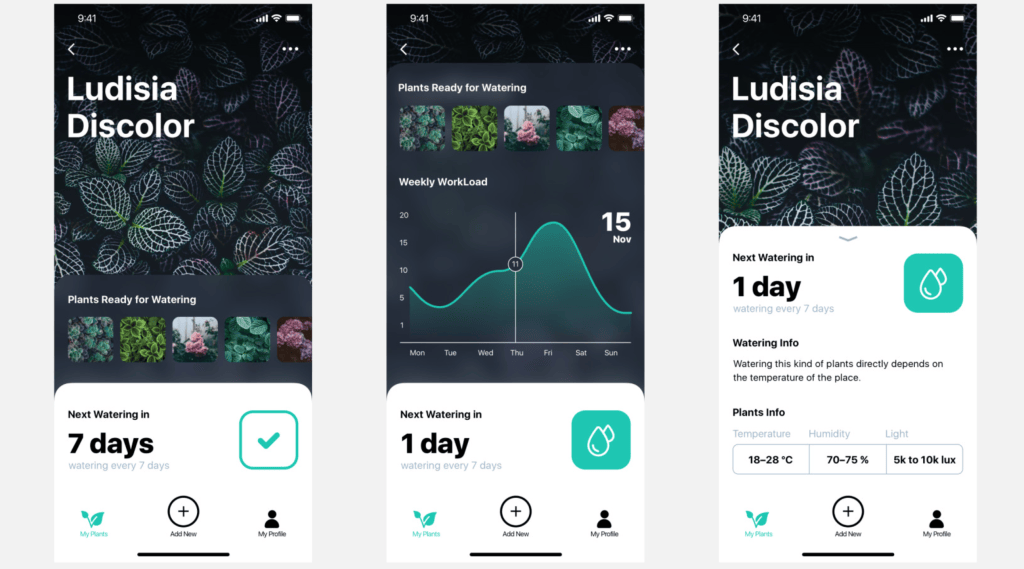
This plant watering app features rich dark colors that are very lush, reminiscent of the rainforest. I chose this example because the information quickly builds from top to bottom when the user swipes. The information lagging gives it character. I also like how the water droplet icon morphs into a checkmark after it’s been tapped.
In the Hermitage Gallery Website example, I thought the use of paint splatters to reveal the content was very clever for an art gallery website. Additionally, the paintings scroll along an imaginary clothesline and are held in place by binder clips which is reminiscent of an artist studio where prints would be hung in the same way. However, the colors are very subdued with one accent which makes the gallery appear very high-end.
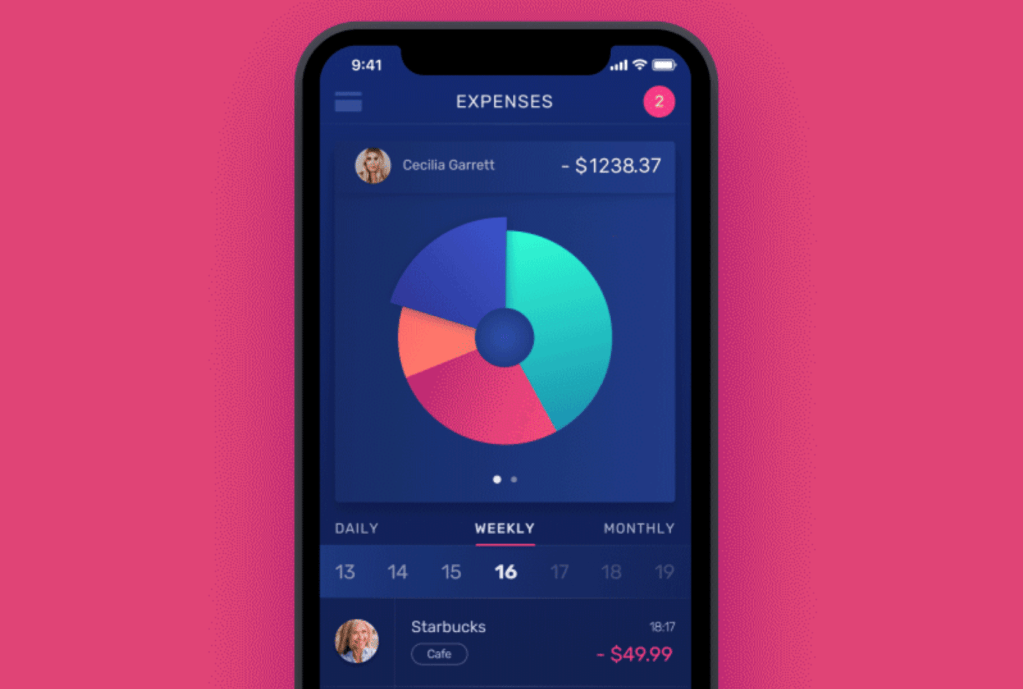
This Budget App, created by Tubik, makes anyone want to start tracking their expenses. I especially love how the pie chart spins then transforms into dots that turn into a line graph. The color palette here is also beautiful. Using navy as background color is unique compared to so many other apps with a white or black background.
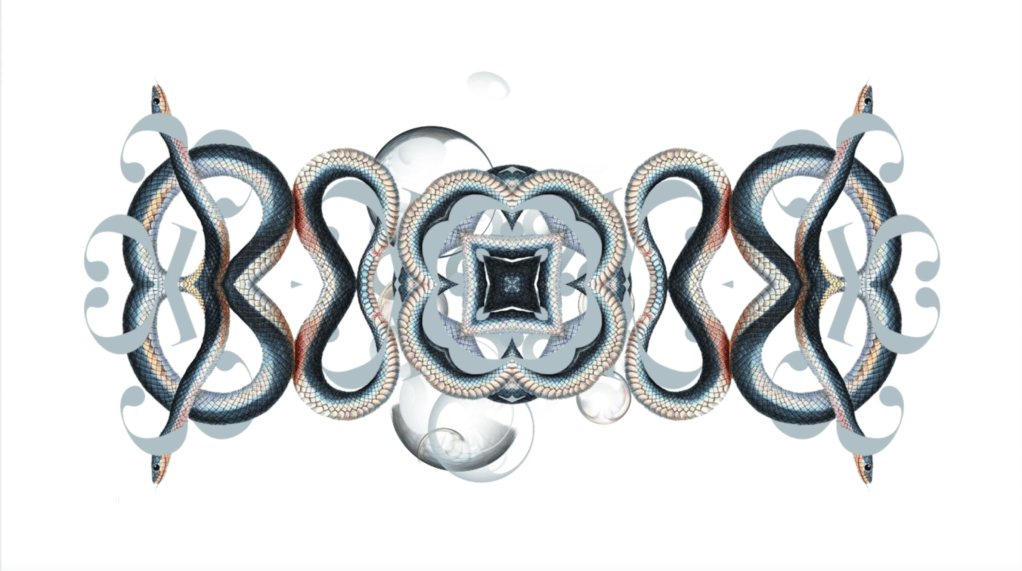
This loading screen for the company Kontrast is intense. The kaleidoscope effect loops seamlessly, and the use of snakes and a serif font give the appearance of a stylish brand.
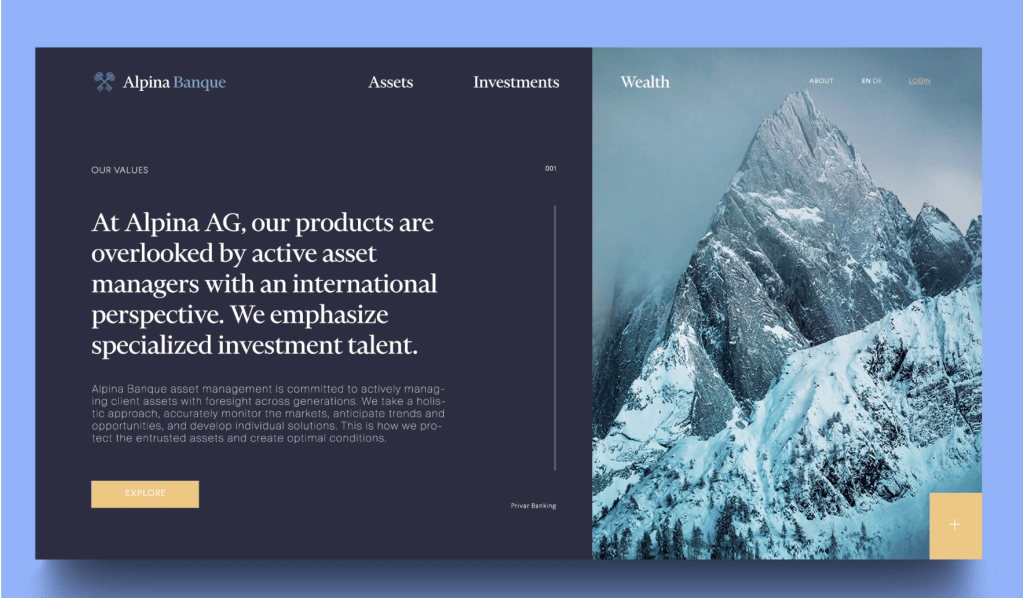
In my last example of engaging interface animation, I chose a bank website called Alpina Banque. I appreciated how the designer used the keys from the logo as design elements. At one point, it’s a background; then, it is used to reveal type. I thought it was a brilliant way to build the brand.
CREATE
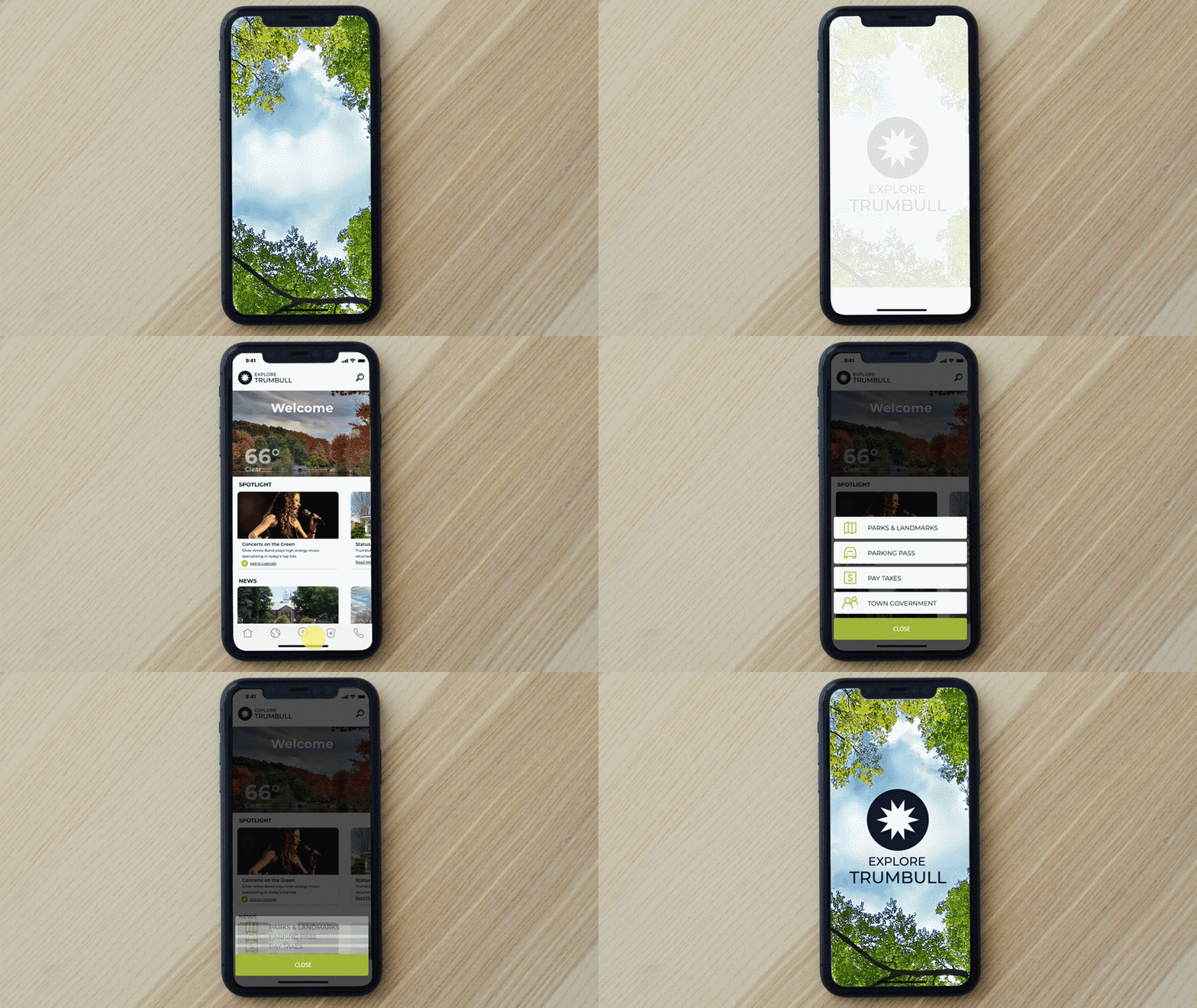
After reading up on animation and researching various UI animations, I wasn’t sure what the best element in UI to animate was. After some internal debate, I decided to expand on a project I started six months ago, an app for my town called: Explore Trumbull. Over time I have been slowly improving it, and I thought adding a bit of animation would take it a step further.
Now the Explore Trumbull app has a loading screen and a menu that expands. I added some popping effects when the menu opens for additional interest. When I was creating these animations, I felt like I had a good handle on the basics. My challenge came in exporting the project, getting the timing right, then making it loop seamlessly.
Slowly my confidence in using After Effects is growing, and I’m sure, like every Adobe program, there are a plethora of more complex options available for when I’m ready to dive deeper. That was my experience with Illustrator, Photoshop, and InDesign.
Here’s my final animation:
Here’s how it looks when it loops:
 To Mulberry Street Marketing & Design
Leave a comment